Pick where you're going.
Choose your destination and how much data you'll need.
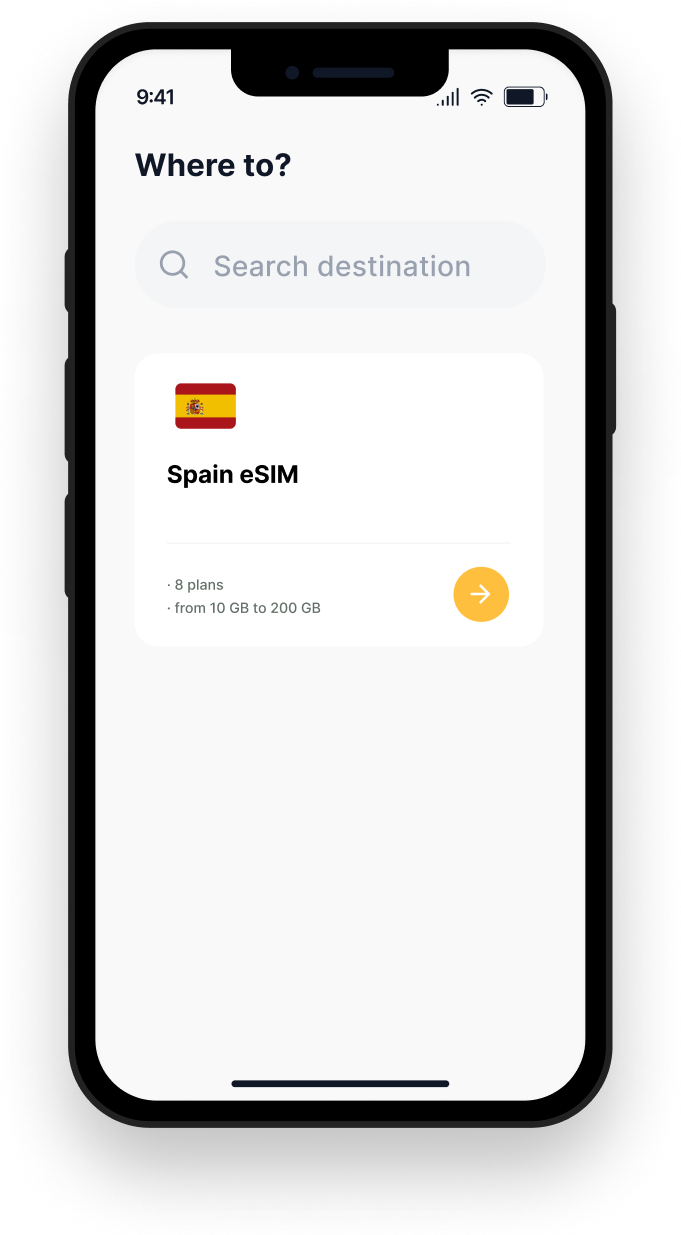
Step-by-step guidance for getting connected before you fly.
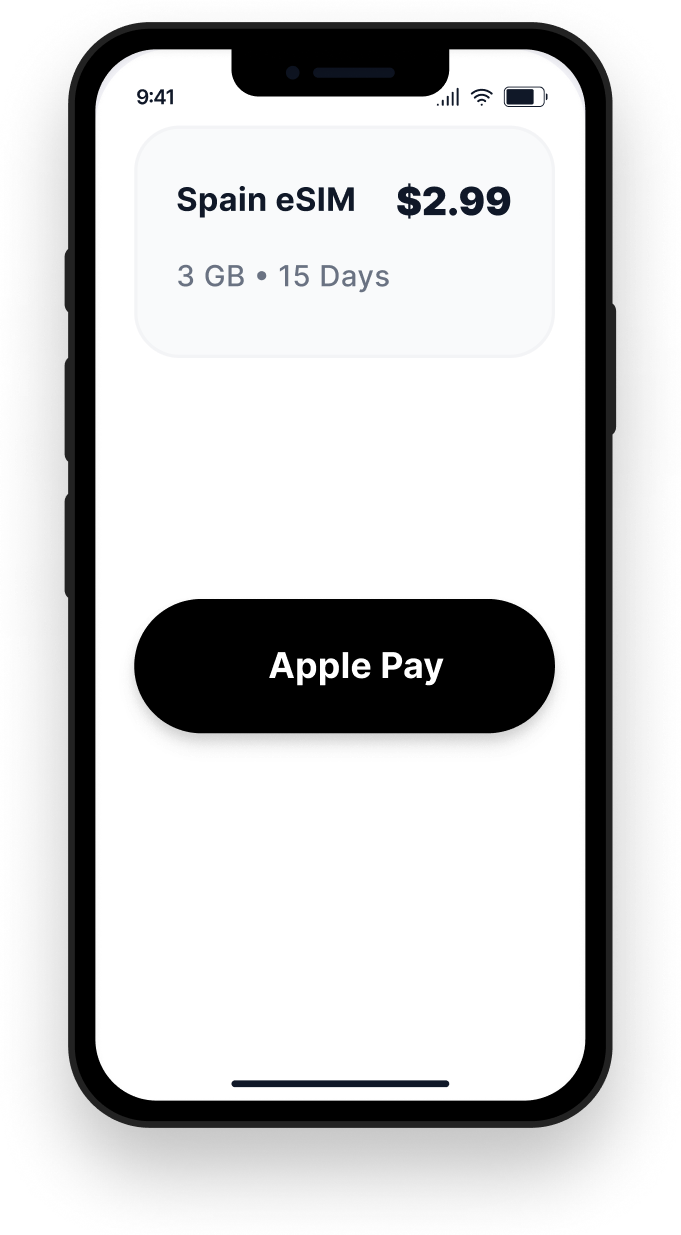
Choose your destination and how much data you'll need.
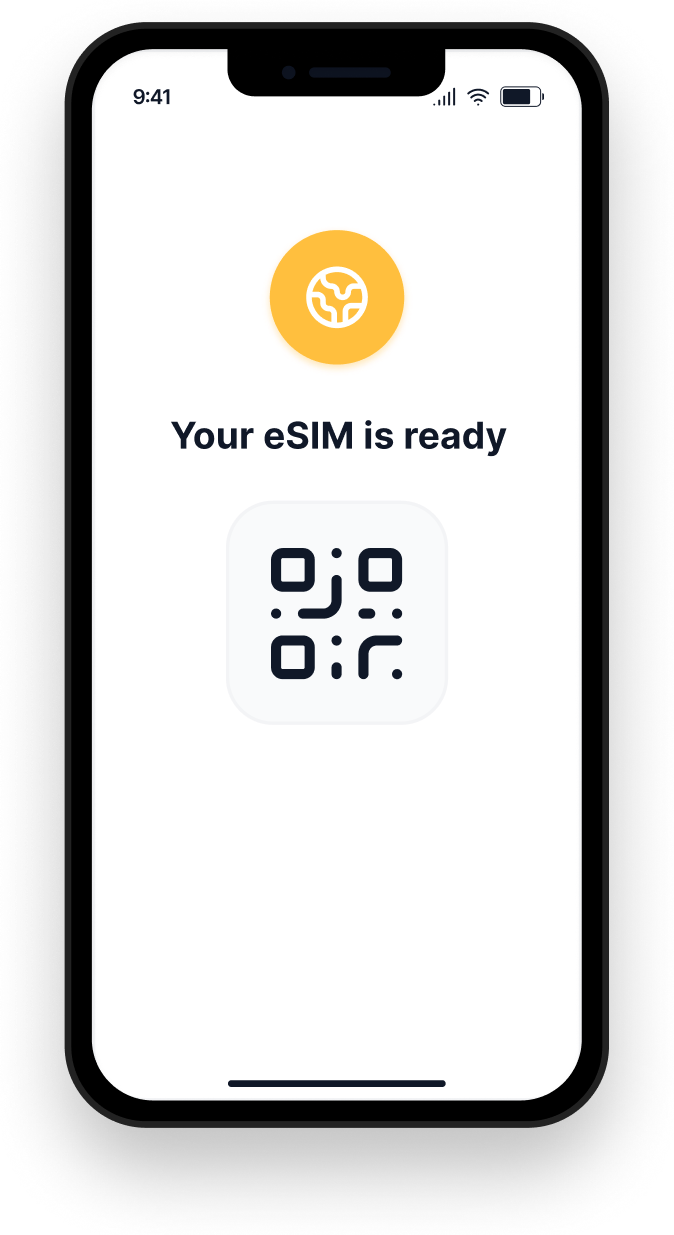
We'll email your eSIM in under a minute. No physical card. Nothing to wait for.
Scan the QR code in your email, or enter the details by hand. Most phones from the last few years support eSIM.
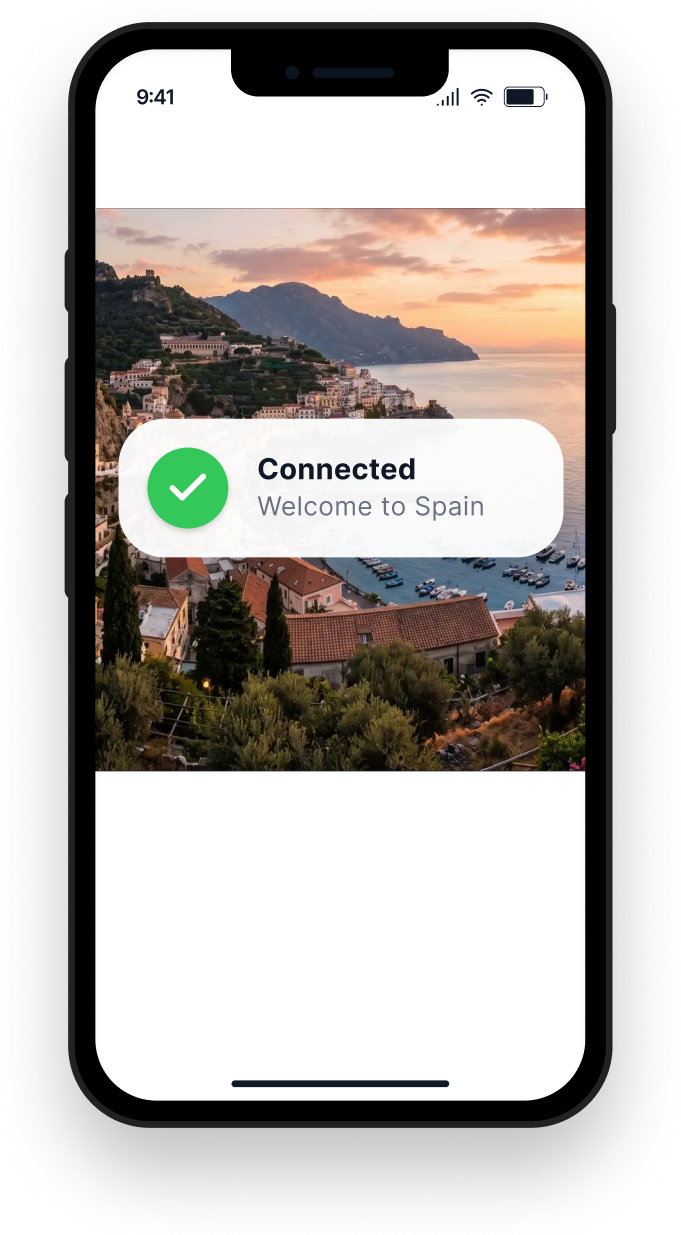
Your eSIM activates the moment your phone touches a network in your destination. No queues at the airport. No SIM swaps. No surprises.
Installation takes about a minute. Choose your device for the right steps.
These steps cover iPhones running iOS 26 or later — that’s iPhone 11 and newer, and iPhone SE from the second generation onwards. Not sure which version you’re on? Settings > General > About shows it near the top.
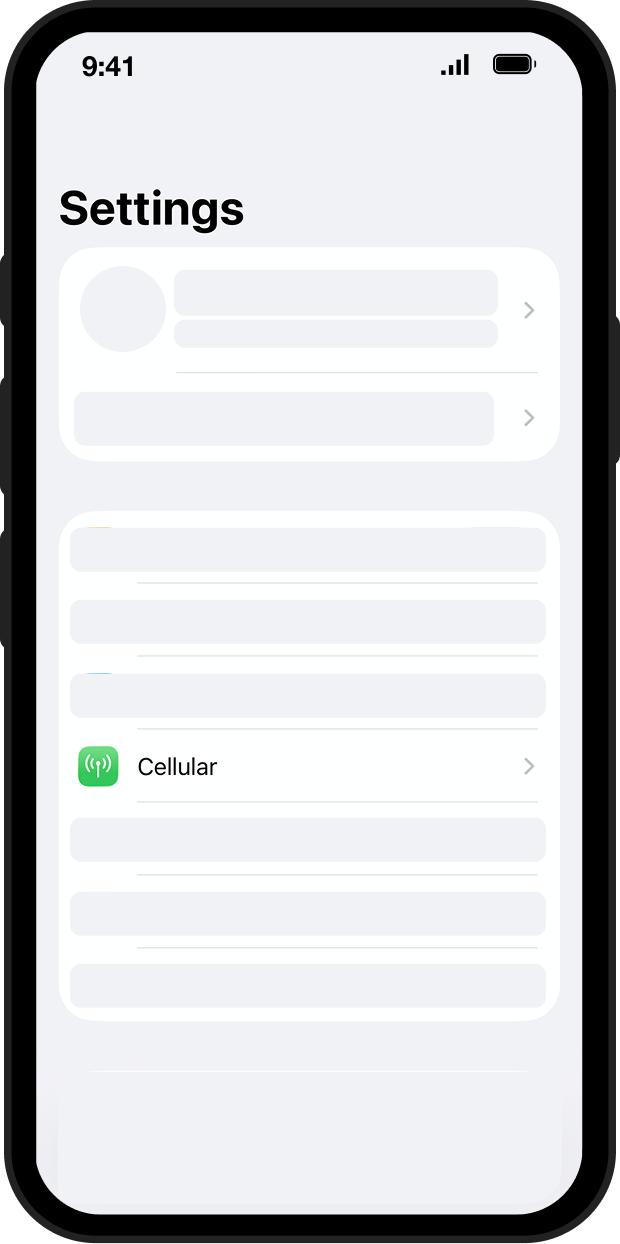
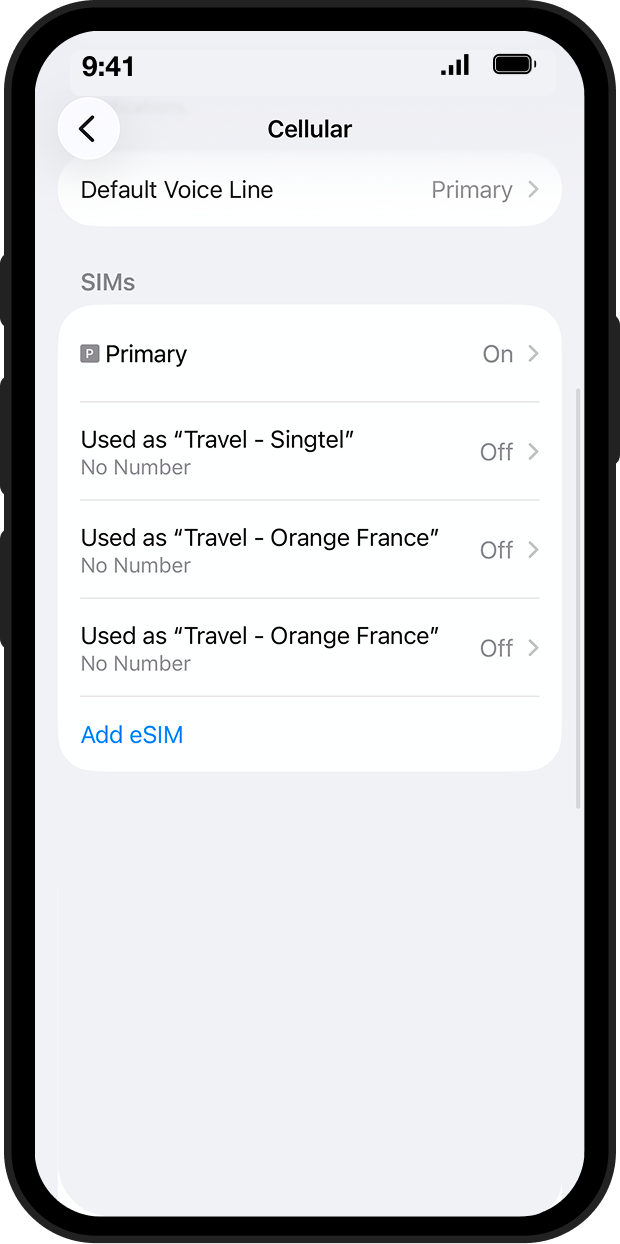
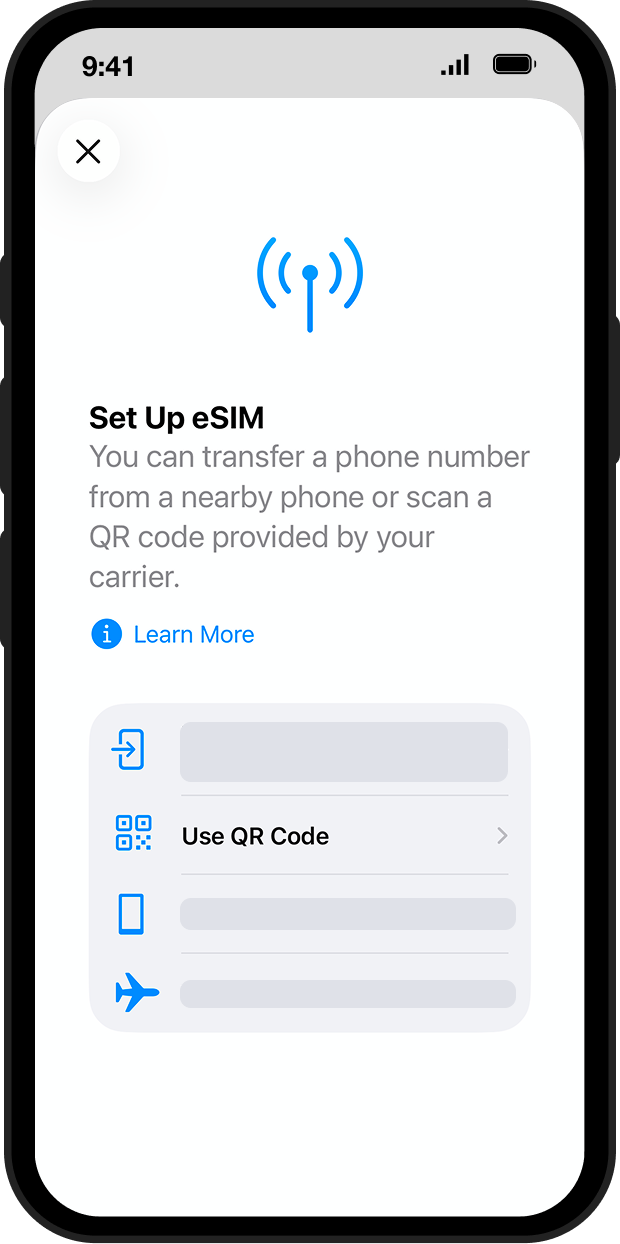
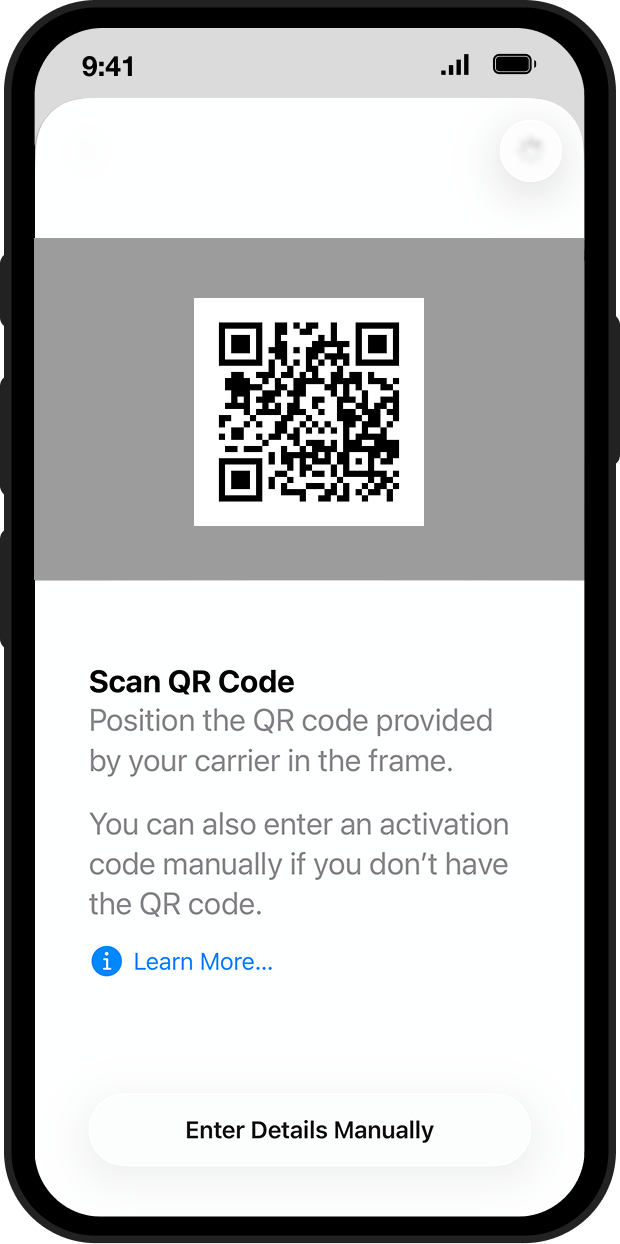
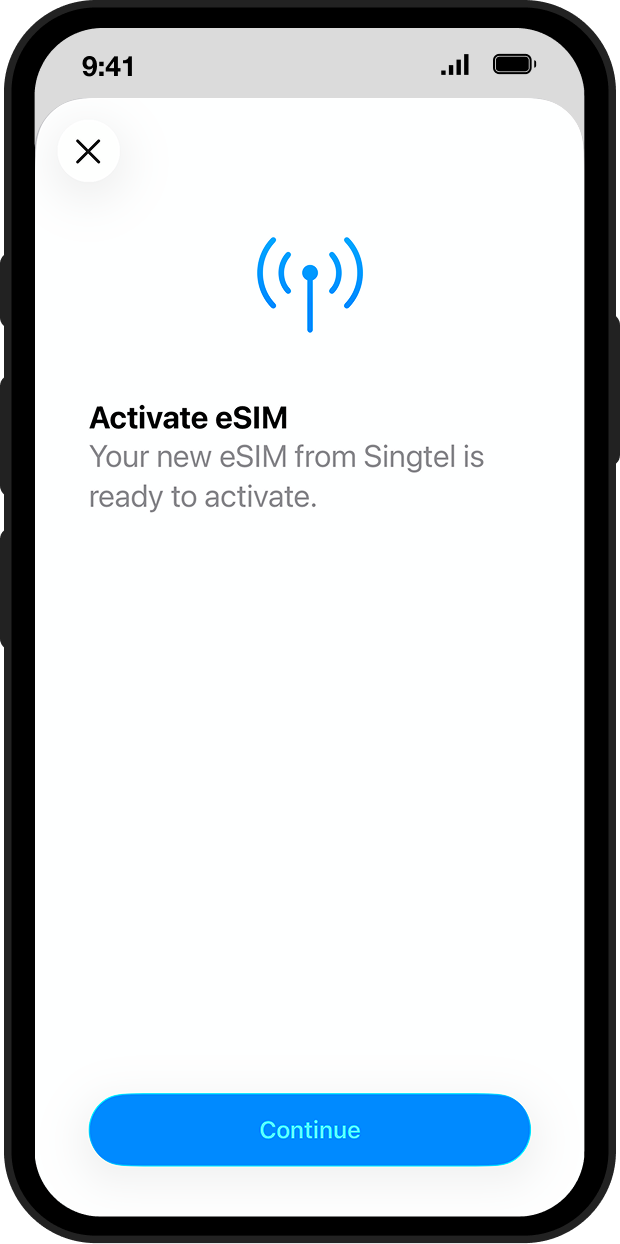
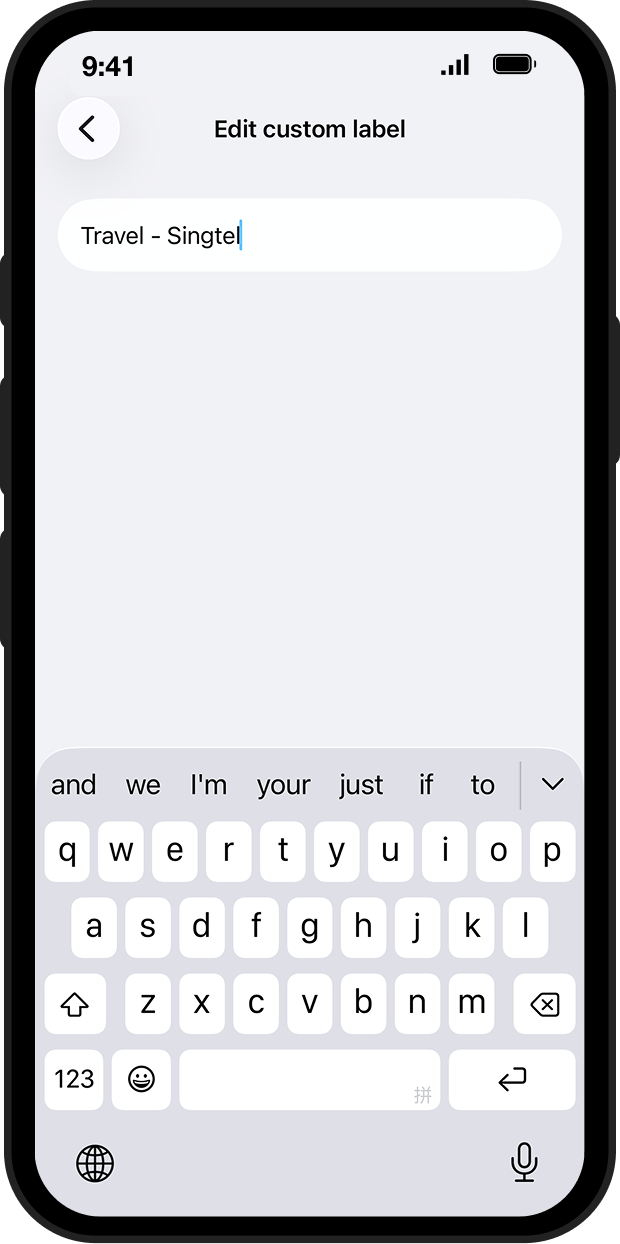
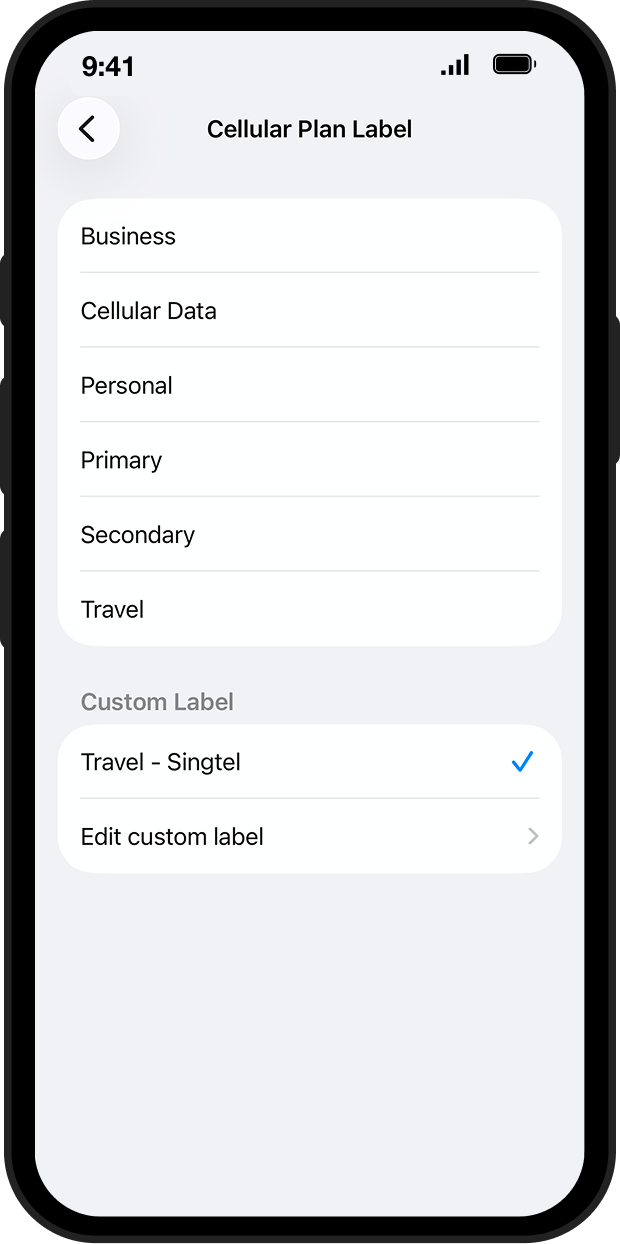
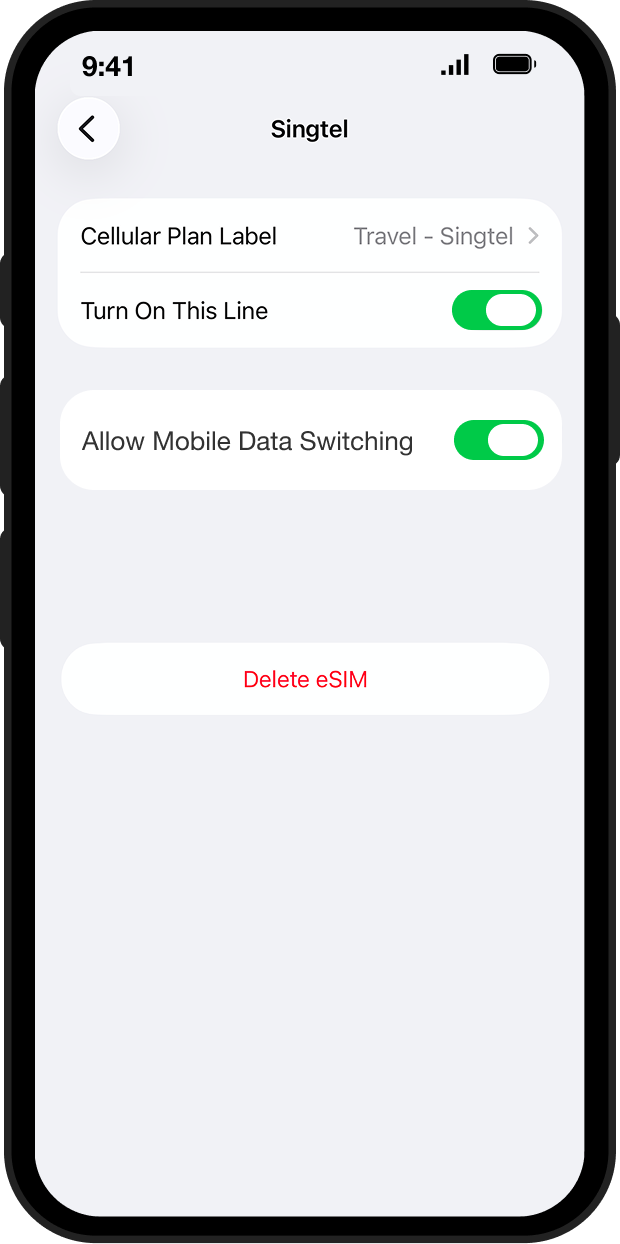
Usually a screen brightness or glare problem. Try raising the brightness on whichever screen is showing the QR code. If it's printed, moving to better light often does the trick. If neither works, switch to entering the details manually — the end result is identical.
eSIM activation codes can only be used once. If you've already set this eSIM up on a phone (even if you deleted it afterwards), the code won't work again.
Usually means your iPhone couldn't reach our activation servers. Have a quick check that you have Wi-Fi or mobile data on, then try again. If it still fails after two attempts, try restarting your iPhone and giving it one more go.
This is expected before you travel. Your eSIM is set up but won't fully activate until it connects to a network in your destination country. There's nothing to fix — it'll come online when you land.
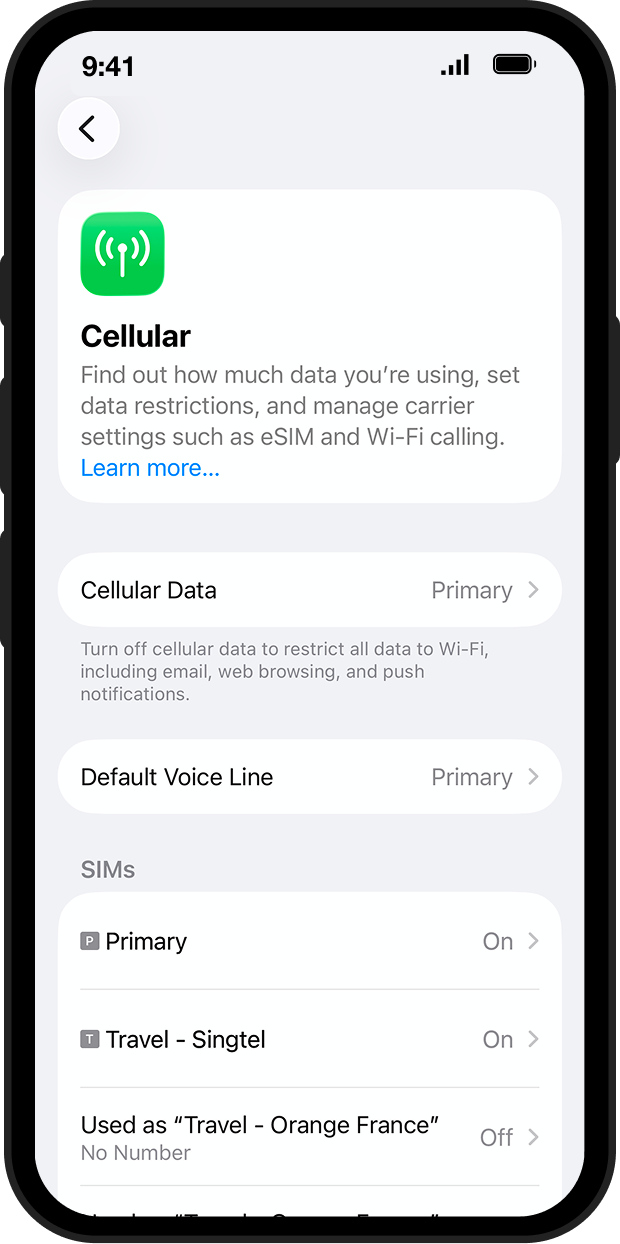
Have a look at Settings > Mobile Service. The new line should be listed with whatever label you gave it. If it's not there, the set-up didn't complete — try again with the QR code or manual details.
Globeelink eSIMs don't use a PIN. If iOS is prompting you for one, it's picking it up from an old SIM card setting. To turn it off: head to Settings > Mobile Service, tap the Globeelink line, tap SIM PIN, and switch it off.
Some phones sold in certain regions have eSIM switched off in firmware, even when the hardware supports it. Message Globeebot — we'll check your model and talk you through your options.
Message Globeebot — it can check your eSIM status directly.
Once your eSIM is installed, there's nothing else to do until you travel.
It won't show signal until your phone connects to a local network in your destination country. There's nothing to fix.
You haven't replaced anything — your eSIM sits alongside your home SIM.
Calls and messages still go through your home SIM unless you've changed the default.
Check data usage, top up, or get help — all from your Globeelink account or via Globeebot.
Quick answers to the questions that come up most. Globeebot can handle anything else.
Our 24/7 support. It checks your eSIM and account directly, so you don't have to explain everything. If it can't fix it, a person can.